
CAN Bus Load Calculator — Free Online Tool
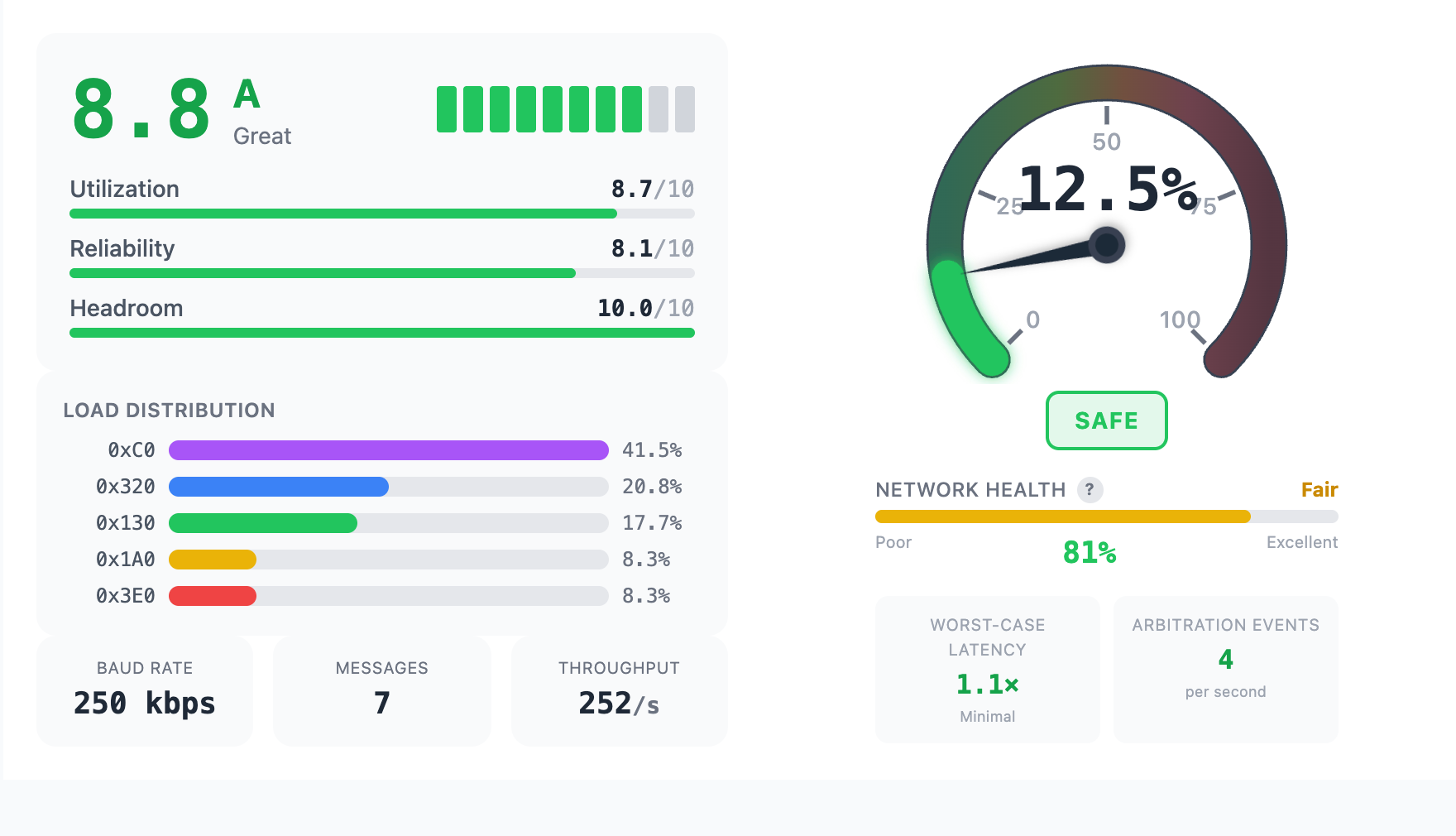
Bus load miscalculations cause intermittent message drops that are brutal to diagnose in the field. Our free online CAN bus load calculator lets you perform accurate bus load calculation in your browser — enter your CAN messages with ID, DLC, and transmission interval to get real-time CAN bus load analysis with health scoring. No installs, no spreadsheets.
What Is CAN Bus Load?
CAN bus load is the percentage of available bandwidth on a Controller Area Network (CAN) that is consumed by message traffic. A bus load of 40% means the network is actively transmitting data 40% of the time and idle 60% of the time. Bus load depends on the number of messages, their sizes, transmission intervals, and the network baud rate.
Monitoring bus load is essential for network reliability. As load increases, lower-priority messages lose arbitration more frequently, introducing latency and eventually causing message drops. Understanding your bus load is the first step toward designing stable, expandable CAN networks — and it is a core skill covered in our CAN Fundamentals course.
How CAN Bus Load Is Calculated
Bus load is the percentage of available bandwidth consumed by message traffic on the CAN network. Every CAN frame carries more than just your data — the protocol adds overhead for arbitration, error checking, and synchronization.
CAN Frame Size
Each CAN frame consists of fixed protocol overhead plus your data bytes:
| Frame Type | Protocol Overhead | Data Bits | Total (8-byte frame) |
|---|---|---|---|
| Standard (11-bit ID) | 44 bits | DLC × 8 | 108 bits |
| Extended (29-bit ID) | 64 bits | DLC × 8 | 128 bits |
The 44-bit overhead in a standard frame includes: SOF (1), Arbitration ID (11), RTR (1), IDE (1), r0 (1), DLC (4), CRC (15), CRC delimiter (1), ACK (1), ACK delimiter (1), EOF (7). Extended frames add 20 more bits for the longer arbitration field. IFS (3 bits) is excluded from the per-frame calculation, consistent with Vector CANalyzer and PEAK PCAN methodology.
Bit Stuffing Overhead
CAN uses bit stuffing for clock synchronization — after 5 consecutive identical bits, the transmitter inserts a complementary stuff bit. This increases the actual bits on the wire:
- Best case: 0% overhead (alternating bit patterns)
- Typical average: ~20% overhead (mixed data traffic)
- Worst case: ~30% overhead (long runs of identical bits)
Our calculator uses a 1.20× bit-stuffing multiplier (20% overhead) — the same approximation used in bus design tools from Vector, PEAK, and Kvaser.
The CAN Bus Load Formula
frame_bits = (base_overhead + DLC × 8) × 1.20
msg_bps = frame_bits × (1000 / interval_ms)
total_bps = Σ msg_bps for all messages
bus_load = total_bps / baud_rate × 100%Example: A standard 11-bit frame with 8 data bytes (DLC=8) at 250 kbps, transmitted every 10ms:
frame_bits = (44 + 8×8) × 1.20 = 129.6 bits
msg_bps = 129.6 × (1000/10) = 12,960 bps
bus_load = 12,960 / 250,000 × 100 = 5.2%One message takes 5.2% of bus capacity. A typical powertrain network with 50 periodic messages at similar parameters: roughly 25–35% bus load at 250 kbps. At that scale, proper load analysis is the difference between a reliable system and intermittent failures in the field. If you are troubleshooting message timing issues, our CAN Bus Troubleshooting PDF is a helpful companion reference.
How to Calculate CAN Bus Load
Follow these steps to calculate the bus load for any CAN network by hand — or skip the math and use our calculator.
- List every periodic message on the bus. For each message, record the CAN ID type (standard 11-bit or extended 29-bit), the DLC (data length code, 0–8 bytes), and the transmission interval in milliseconds.
- Calculate the raw frame size for each message. Add the protocol overhead (44 bits for standard, 64 bits for extended) to the data bits (DLC × 8).
- Apply the bit-stuffing multiplier. Multiply each raw frame size by 1.20 to account for the typical 20% bit-stuffing overhead.
- Compute each message’s bit rate. Multiply the stuffed frame size by the transmission frequency (1000 / interval_ms) to get bits per second for that message.
- Sum all message bit rates and divide by the baud rate. The result, expressed as a percentage, is your bus load. Compare it against the threshold table below to assess network health.
Or skip the math — open our calculator and get results in seconds.
CAN Bus Load Limits — How Much Is Too Much?
There is no hard protocol limit — CAN will attempt to transmit at 100% load. But in practice, high bus load causes arbitration delays, message drops, and timeout faults. Here are the industry-accepted thresholds:
| Bus Load | Status | What Happens |
|---|---|---|
| 0 – 30% | Safe | Plenty of headroom. Messages transmit without delay. |
| 30 – 50% | Normal | Typical operating range. Room for expansion. |
| 50 – 70% | Caution | Low-priority messages start experiencing delays. Monitor closely. |
| 70 – 85% | Warning | Arbitration losses frequent. Message drops likely under burst conditions. |
| 85 – 100% | Critical | Bus congestion. Communication failures, ECU timeouts, system instability. |
Industry recommendation: Keep average bus load below 70% to allow headroom for error retransmission, diagnostic messages during troubleshooting, and future system expansion. For safety-critical applications (braking, steering), target below 50%.
CAN FD Bus Load Calculation
CAN FD (Flexible Data-rate) fundamentally changes bus load math. Frames can carry up to 64 data bytes instead of 8, and the data phase can run at a higher baud rate — typically 2 Mbps or 5 Mbps, with some controllers supporting up to 8 Mbps. The result is dramatically lower bus load for the same data throughput.
However, CAN FD bus load calculation requires a dual-rate approach. The arbitration phase (SOF, ID, control fields) still transmits at the nominal baud rate — typically 500 kbps or 1 Mbps. Only the data phase (payload and CRC) switches to the faster data-phase rate. This means you cannot simply divide total bits by a single baud rate. Instead, you must calculate the time spent in each phase separately and sum them:
arb_time = arb_bits / nominal_rate
data_time = data_bits / data_rate
frame_time = arb_time + data_time
bus_load = Σ (frame_time × frequency) × 100%Because the data phase runs faster, the overhead bits in the arbitration phase become a proportionally larger share of total frame time. A CAN FD frame with 64 bytes of data at 500k/2M dual rate can transmit roughly 4× more data than a CAN 2.0 frame while using less bus time. This makes CAN FD essential for high-bandwidth applications like firmware flashing, high-resolution sensor data, and ADAS systems.
Our calculator supports CAN FD at 1 Mbps nominal rate. For mixed CAN 2.0 / CAN FD networks, calculate each protocol’s contribution separately. Bit stuffing in CAN FD uses a fixed stuffing mechanism in the data phase (stuff count field), which differs from the dynamic bit stuffing in CAN 2.0 — our calculator accounts for this difference. To learn more about CAN FD frame structure and protocol differences, see our CAN Fundamentals course.
Limitations
This calculator provides a bus load estimation based on steady-state periodic traffic. It does not model:
- Arbitration delays — priority-based contention between simultaneous transmitters
- Error frame overhead — retransmission bursts from CRC or bit errors
- Propagation delay — cable length effects on bit timing (use our Cable Length Calculator for this)
- Event-driven messages — non-periodic transmissions (button presses, fault codes)
The calculator gives you a steady-state average — the baseline utilization from periodic messages. Real-world peak load during error recovery or diagnostic sessions will be higher. That is exactly why the 70% threshold exists: the remaining 30% headroom absorbs transient spikes from error retransmissions, event-driven messages, and diagnostic requests. If your steady-state calculation is already near 70%, your network has no margin for the unexpected — and intermittent faults will follow. For complex network designs or troubleshooting persistent bus load issues, contact us for consulting.
Features & Use Cases
- Real-time utilization calculation — results update as you type
- Health score (A+ to F) — instant assessment of your network capacity
- Multiple baud rates — 125K, 250K, 500K, and 1 Mbps
- 11-bit and 29-bit (J1939) protocol support
- Scenario comparison — compare baseline vs. modified configurations
- Per-message bandwidth breakdown — see which messages consume the most capacity
Use the calculator for network design (verify capacity before finalizing message schedules), troubleshooting (diagnose intermittent message drops or timeouts), system expansion (check if adding new ECUs will overload the bus), and training (understand how message parameters affect bus utilization). For more tools and downloads, visit our resources hub.
Frequently Asked Questions
What is a safe CAN bus load percentage?
Most automotive and industrial standards recommend keeping average CAN bus load below 70%. Below 30% is considered safe with ample headroom; 30–50% is typical for production networks. For safety-critical systems (ABS, EPS, airbags), target below 50% to guarantee worst-case message latency stays within specification. Our CAN Troubleshooting course covers how to identify and resolve bus load issues in production systems.
How does high bus load affect message latency?
As bus load increases, low-priority messages lose arbitration more often and must wait longer to transmit. At 50% load, a low-priority message may wait 2–3 frame times; at 80% load, that delay can grow to 10+ frame times. This creates unpredictable latency that triggers ECU timeout faults and communication errors — symptoms that are difficult to reproduce because they depend on traffic patterns that only occur under specific operating conditions.
What is the difference between CAN 2.0 and CAN FD bus load?
CAN 2.0 frames carry a maximum of 8 data bytes at a single baud rate (up to 1 Mbps). CAN FD frames carry up to 64 data bytes and use dual baud rates — a slower nominal rate for arbitration and a faster data rate (up to 8 Mbps) for the payload. This means CAN FD can transmit 8× more data per frame in less time, resulting in significantly lower bus load for equivalent data throughput. The bus load formula must account for both rates separately.
Does the calculator account for bit stuffing?
Yes. The calculator applies a 1.20× multiplier to the raw frame size, representing the typical 20% overhead from CAN bit stuffing. In CAN 2.0, a stuff bit is inserted after every 5 consecutive identical bits in the frame (excluding the CRC delimiter, ACK, and EOF fields). Worst-case stuffing can reach ~30%, but 20% is the accepted average for mixed data traffic and matches the methodology used by Vector CANalyzer and PEAK PCAN-View.
Need help optimizing a production CAN network? Book a consulting session with our CAN bus engineering team.